


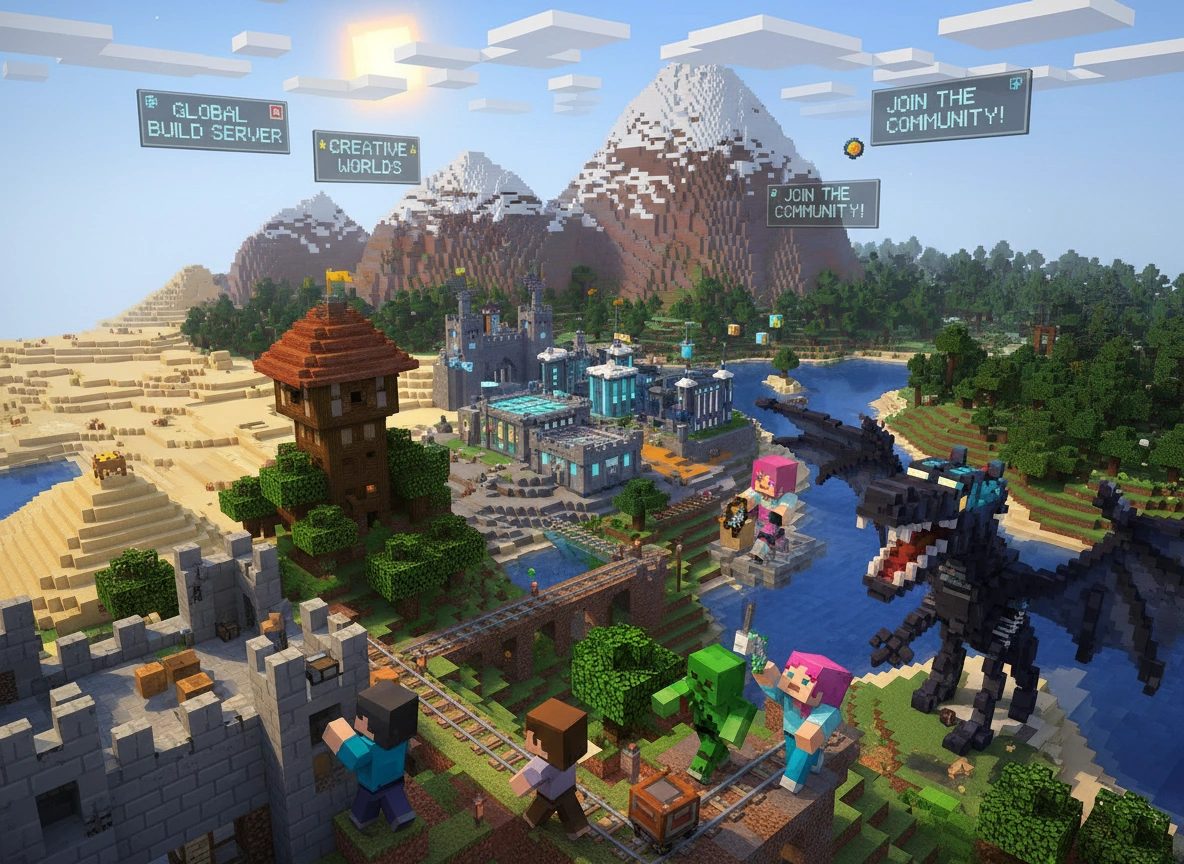
Running a Minecraft server offers a deeply rewarding way to build communities and share vast, creative worlds with other players. Multiplayer servers form the backbone of the Minecraft community, allowing friends and strangers alike to collaborate, compete, and construct complex ecosystems. However, hosting a seamless multiplayer experience requires more than just launching a game file. As a server administrator, you hold the responsibility of keeping the digital world spinning.
Inevitably, technical hiccups will occur. From sudden lag spikes to complete server crashes, these interruptions can frustrate players and disrupt the gameplay experience. Understanding how to diagnose and resolve these common issues quickly is an essential skill for any server owner. This guide provides a detailed roadmap for troubleshooting the most frequent problems that plague Minecraft servers, ensuring you can keep your community connected and playing without unnecessary downtime.
Common Issues Players Face
Before you can fix a problem, you must first understand what you are dealing with. The vast majority of Minecraft server issues fall into four primary categories:
Connection Problems
Connection issues often manifest as “Connection Timed Out,” “Unknown Host,” or “Can’t Reach Server” errors. When these happen, players are completely locked out of the world. These problems usually stem from network misconfigurations, firewall blocks, or incorrect IP addresses.
Server Lag
Lag is the silent killer of server enjoyment. It typically presents in two forms: network lag (high ping) or server lag (low Ticks Per Second, or TPS). Server lag causes “rubberbanding” (where players snap back to previous positions), delayed block breaking, and sluggish mob behavior.
Server Crashes
A server crash brings everything to an abrupt halt, abruptly disconnecting all players. Crashes often result from memory exhaustion, corrupted world data, or severe hardware limitations. When a crash happens, the server generates a crash report that holds the key to diagnosing the failure.
Plugin and Mod Errors
Plugins and mods add incredible functionality to a server, but they also introduce complex variables. Outdated plugins, conflicting software, and missing dependencies can break specific features, spam the server console with errors, or even cause the entire server to crash upon startup.
Step-by-Step Troubleshooting Guide
When a problem strikes, a systematic approach saves time and prevents further complications. Follow these targeted steps to address the specific issues affecting your server.
Fixing Connection Issues
When players cannot join your server, start by verifying the most basic network settings.
1. Check Server Status and IP Settings:
Confirm that the server is actually running. Check your hosting panel or local command prompt. Ensure that players are using the correct public IP address. If you are hosting the server on a home network, remember that your public IP can change unless you have configured a static IP or Dynamic DNS.
2. Verify Port Forwarding:
Minecraft runs on port 25565 by default. If you host locally, log into your router’s administrative dashboard and verify that port 25565 is open and correctly forwarded to the internal IP address of the machine hosting the server.
3. Configure Firewalls:
Both Windows Defender and third-party antivirus software can block incoming connections. Open your firewall settings and create an inbound rule that allows traffic through port 25565.
Addressing Lag and Optimizing Settings
Tackling lag requires you to balance the server’s workload with its available hardware resources.
1. Monitor Ticks Per Second (TPS):
Minecraft runs at a target of 20 TPS. If your TPS drops below 18, players will notice lag. Use the /tps command (available in custom server jars like Spigot or Paper) to check your server’s performance.
2. Optimize Server Jars:
If you are running the default “Vanilla” server software provided by Mojang, consider switching to an optimized alternative like PaperMC. Paper includes numerous performance patches that drastically reduce processing overhead without changing core gameplay.
3. Adjust View Distance:
The server.properties file controls many baseline settings. The view-distance setting dictates how many chunks the server loads around each player. Lowering this from the default 10 to 6 or 8 drastically reduces memory usage and CPU strain, especially when multiple players explore different areas simultaneously.
4. Clear Entities:
Excessive entities—such as dropped items, large animal farms, or clustered monster spawns—drain server resources. Use optimization plugins like ClearLag to periodically remove abandoned items and cap the number of mobs allowed in a single area.
Resolving Server Crashes
Crashes seem intimidating, but they leave behind detailed clues.
1. Read the Crash Report:
Navigate to your server’s crash-reports folder. Open the most recent text file. Scroll past the technical jargon and look for the “Description” line and the stack trace. These lines often name the exact entity, block, or plugin that triggered the crash.
2. Allocate Adequate RAM:
“Out of Memory” errors are incredibly common. If your server runs out of RAM, it will panic and shut down. Adjust your startup script (the .bat or .sh file) to increase allocated memory. For example, changing -Xmx2G to -Xmx4G increases the maximum RAM from 2 gigabytes to 4 gigabytes.
3. Repair Corrupted Chunks:
Occasionally, a specific chunk of the world becomes corrupted. When a player loads that chunk, the server crashes. You can use specialized tools like the Minecraft Region Fixer to scan your world files, isolate the corrupted data, and safely delete the broken chunk so the game can regenerate it.
Resolving Plugin Conflicts
Plugins are powerful, but they require careful management to function correctly.
1. Verify Versions:
Ensure that every plugin you install explicitly supports your server’s Minecraft version. Running a 1.19 plugin on a 1.20 server often results in broken mechanics or immediate crashes.
2. Read the Console Output:
Watch the server console during the startup process. If a plugin fails to load, the console will output a red error block. This text usually specifies exactly what went wrong, such as a missing dependency file (like Vault or ProtocolLib) that the plugin requires to function.
3. The Half-and-Half Method:
If you have dozens of plugins and cannot identify which one is causing lag or errors, use the binary search method. Remove half of your plugins and restart the server. If the problem disappears, you know the culprit is in the removed half. Continue halving the suspect group until you isolate the broken plugin.
Tips for Maintaining a Healthy Server Environment
Preventing problems is always easier than fixing them. Adopting a proactive maintenance routine keeps your server running smoothly long-term.
Perform Regular Backups:
Never operate a server without automated, daily backups. If a world becomes irreparably corrupted or a malicious player damages your spawn, a recent backup allows you to restore the server with minimal data loss. Store backups on a separate physical drive or cloud service.
Keep Software Updated:
Server developers continuously release patches for security vulnerabilities, memory leaks, and performance bugs. Regularly update your server jar file and all installed plugins. Always test updates on a temporary local server before applying them to your live server to ensure compatibility.
Monitor Resource Usage:
Do not wait for lag to become unbearable before checking your hardware. Regularly check your server’s CPU and RAM usage. If you notice a steady increase in resource consumption over several weeks, you may need to upgrade your hosting plan or perform a world trim to delete unused chunks.
Establish Clear Rules and Limitations:
Player behavior dictates server performance. Establish rules regarding massive Redstone contraptions, infinite villager breeders, and expansive mob farms. Redstone clocks and thousands of clustered entities bring even the most powerful hardware to its knees. Communicate these limitations clearly to your players.
Conclusion
Running a Minecraft server requires technical vigilance and a willingness to solve complex puzzles. While connection timeouts, hardware lag, application crashes, and plugin conflicts can disrupt the fun, they are entirely manageable with the right approach. By systematically checking your configurations, reading your error logs, and optimizing your resource allocation, you can resolve the vast majority of server issues swiftly.
Ultimately, proactive server management makes the difference between a frustrating experience and a thriving digital community. Embrace regular backups, stay up to date with your software, and monitor your hardware limits. By maintaining a healthy server environment, you ensure that your players can focus on what truly matters: building, exploring, and creating lasting memories together.
Please visit the official site for more info.

